
TRUESigner ONE for Zoho Recruit
User Guide & Documentation
1. Introduction
TRUESigner ONE for Zoho Recruit enables organizations to digitally sign candidate-related documents directly from Zoho Recruit. The extension supports multiple signing methods such as eSign, DCS, and Aadhaar-based signing, ensuring a secure and compliant hiring workflow.
This guide provides step-by-step instructions for installing the extension and using it to initiate, track, and complete document signing for candidates.
2. Installation Guide
Step 1: Install the Extension
1. Click Install on the TRUESigner ONE extension from the Zoho Marketplace.
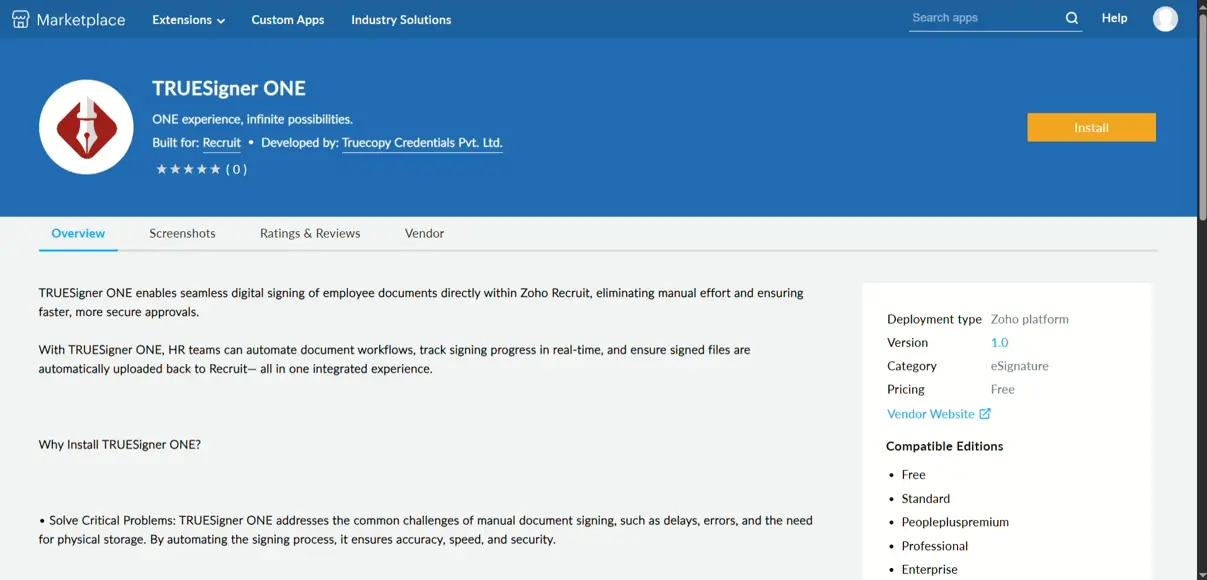
2. You will be redirected to the installation screen.
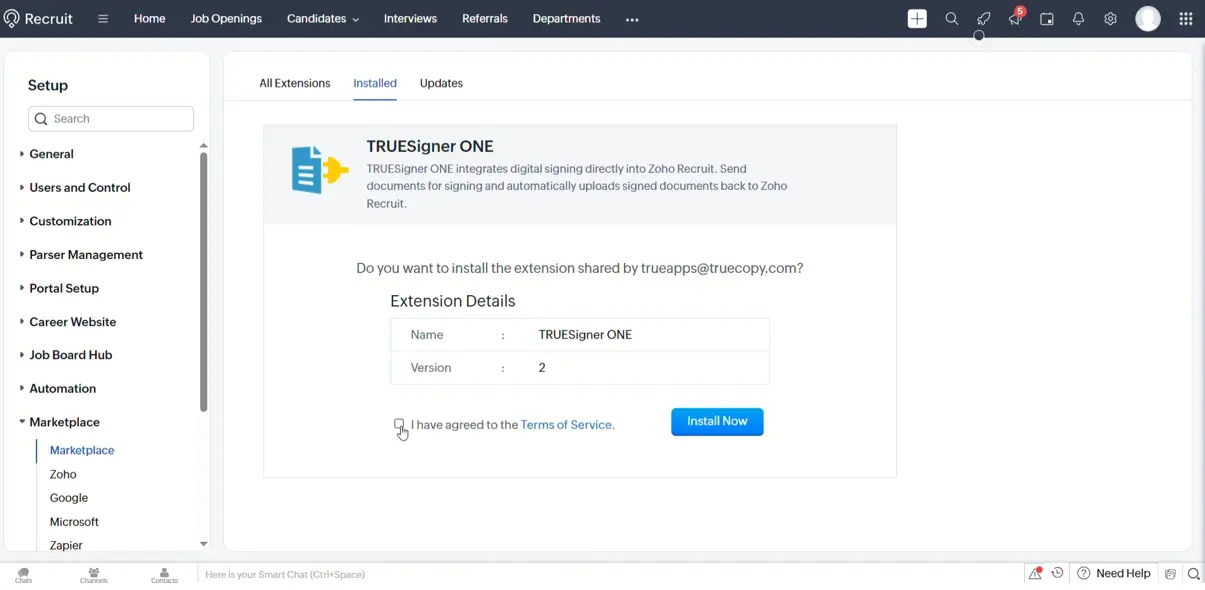
3. Review the Terms of Service.
4. Click Install Now, then select Agree and Continue to proceed.
Step 2: Authorize Zoho Recruit Connection
The extension requires access to Zoho Recruit to fetch candidate and document details during the signing process.
Step 2.1: Initiate Authorization
1. Click Authorize to allow the extension to connect with Zoho Recruit.
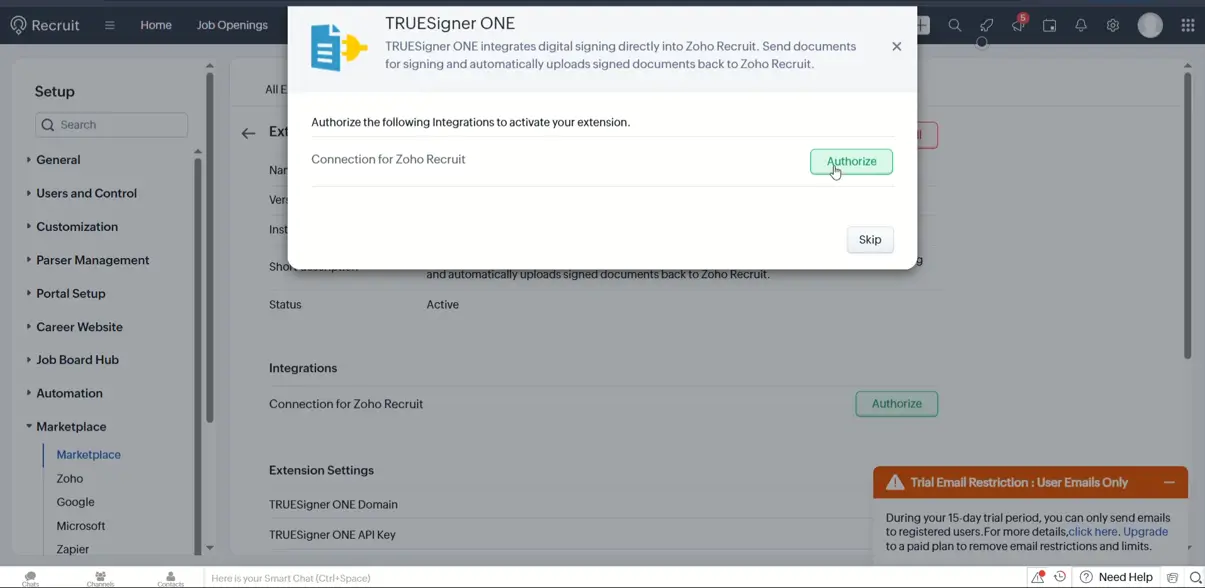
2. You will be redirected to the Zoho authentication page.
Step 2.2: Grant Permissions
1. Review all the requested scopes carefully.
2. Select the required permissions.
3. Check the Allow option.
4. Click Accept to grant access.
Step 2.3: Confirm Connection
• Once the connection is successful, you will be redirected back to the installation screen.
• Click Next to continue.
Step 3: Configure TRUESigner ONE Credentials
This is a mandatory and critical step to enable document signing.
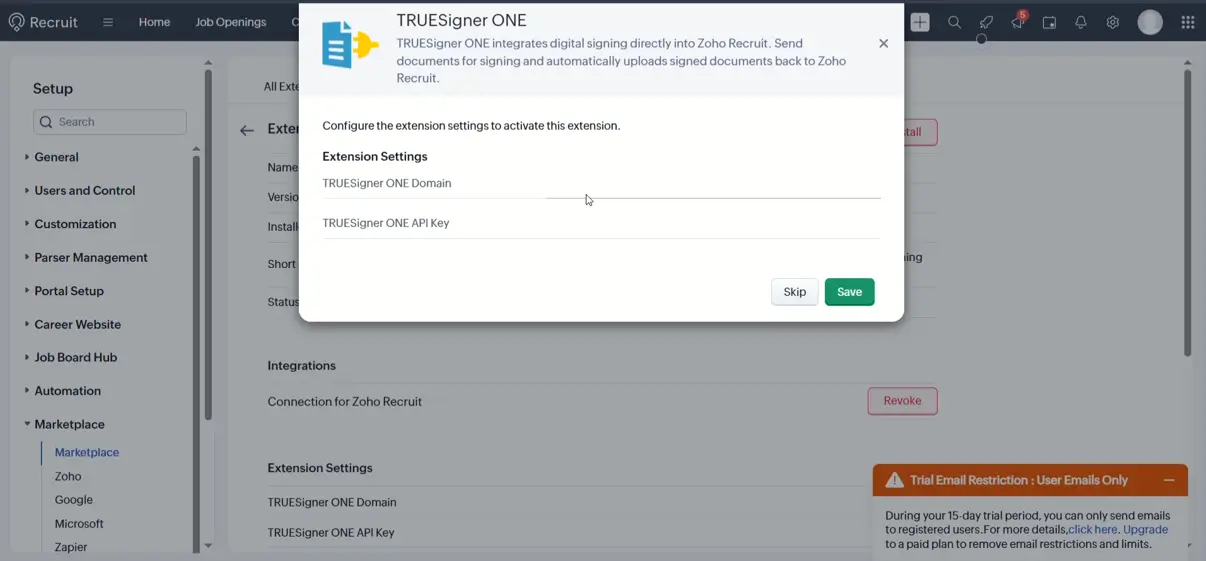
1. Enter your TRUESigner ONE Domain.
2. Enter your TRUESigner ONE API Key.
3. Both credentials are required to use TRUESigner ONE services.
Note: If you do not have TRUESigner ONE credentials, please contact the TRUESigner team: – apps@truecopy.com – sales@truecopy.com
After entering the credentials, complete the installation process.
3. Using the Extension
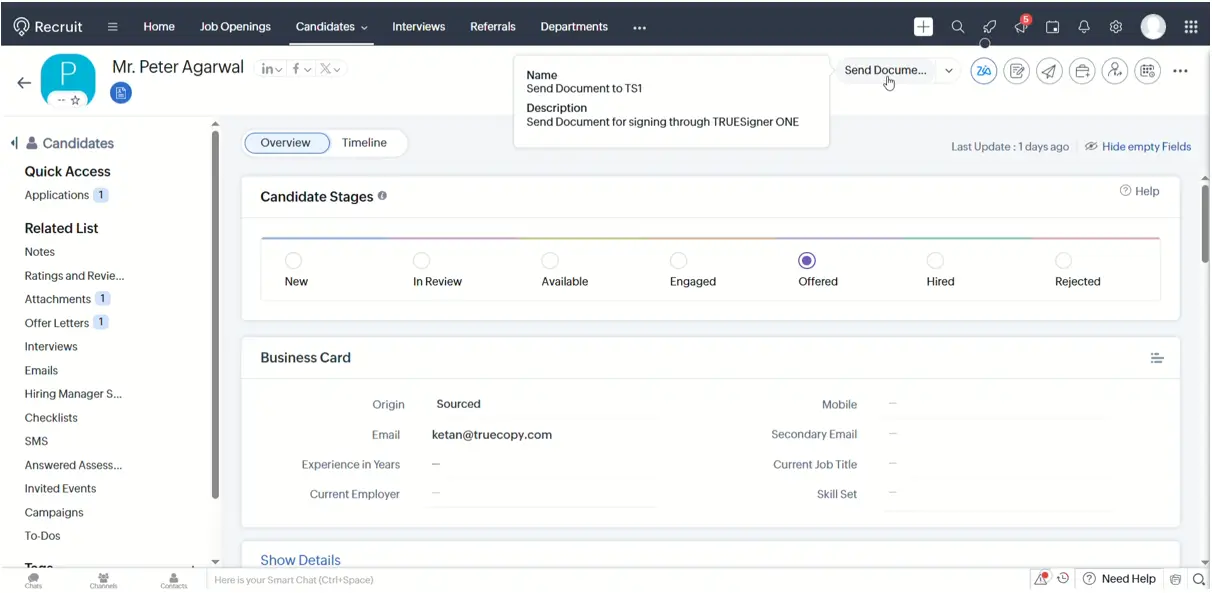
Step 1: Select a Candidate in Zoho Recruit
1. Log in to your Zoho Recruit account.
2. Navigate to the Candidates section.
3. Open the candidate profile for whom you want to initiate document signing.
4. On the top action bar, click Sign Document.
Step 2: Configure Document Signing
Once you click Sign Document, the TRUESigner ONE widget will appear.
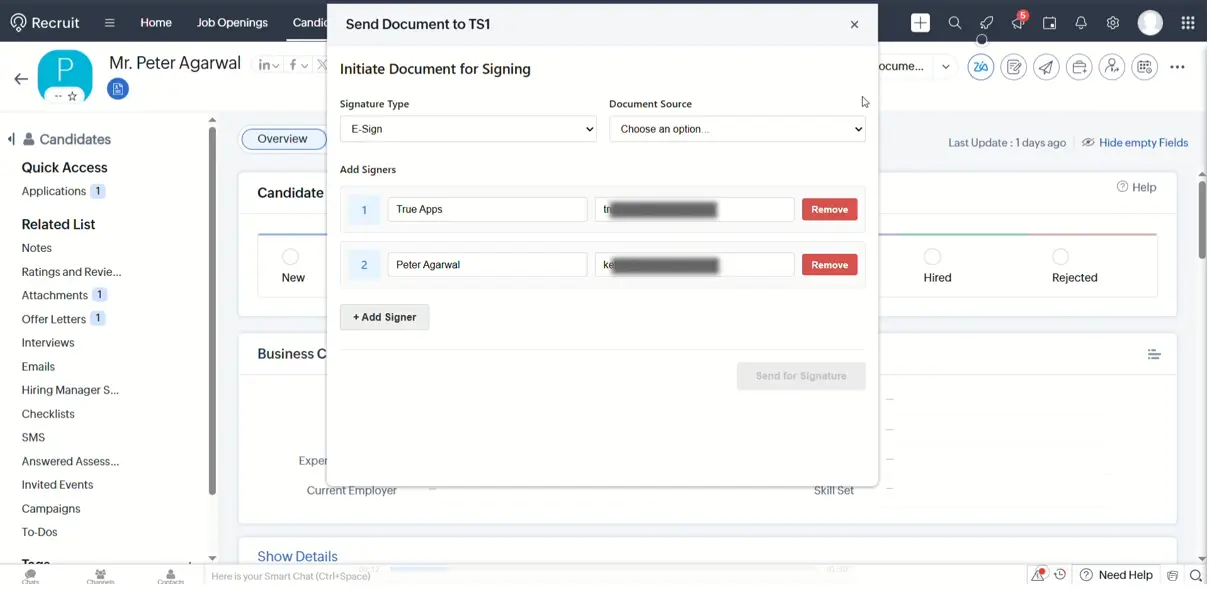
2.1 Select Signing Type
Choose one of the available signing methods: – eSign – DCS (Digital Certificate Signing) – Aadhaar-based Signing
2.2 Select Document
You can choose the document to be signed using one of the following options:
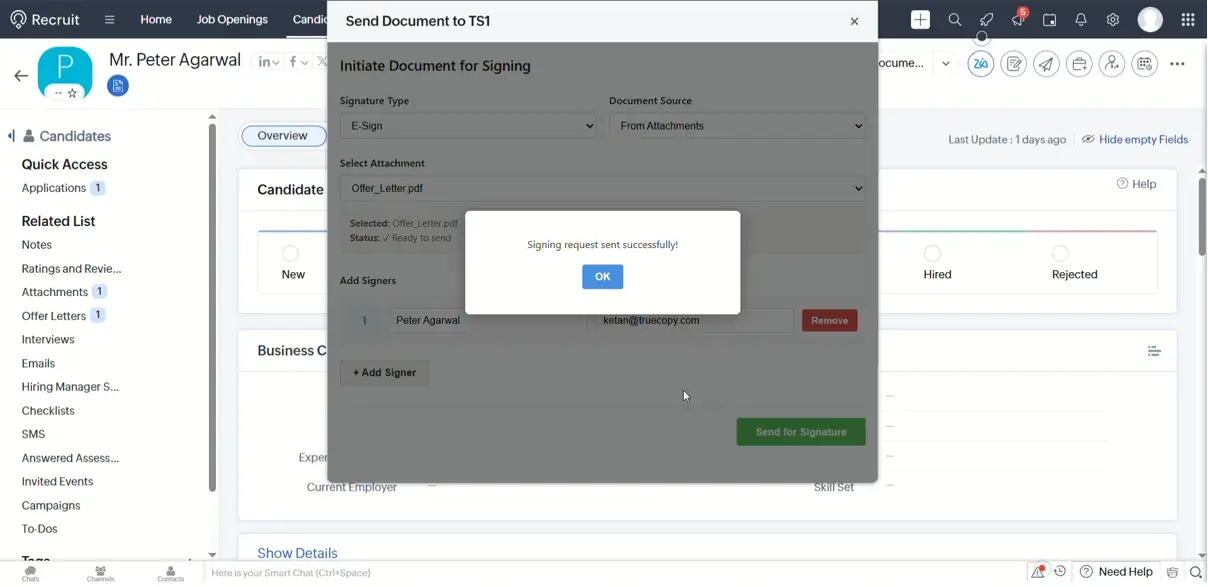
• From Attachments:
- Displays documents already attached to the candidate record.
- When an offer is created and accepted by a candidate, the offer letter PDF is automatically saved in attachments.
- You can select this existing PDF for signing.
• Upload Document:
- Upload a new PDF file directly for signing.
2.3 Select Signers
- By default, some signers may be pre-populated.
- You can add, remove, or modify signers according to your signing workflow.
After reviewing all details, click Send for Signature.
4. Signing & Status Tracking
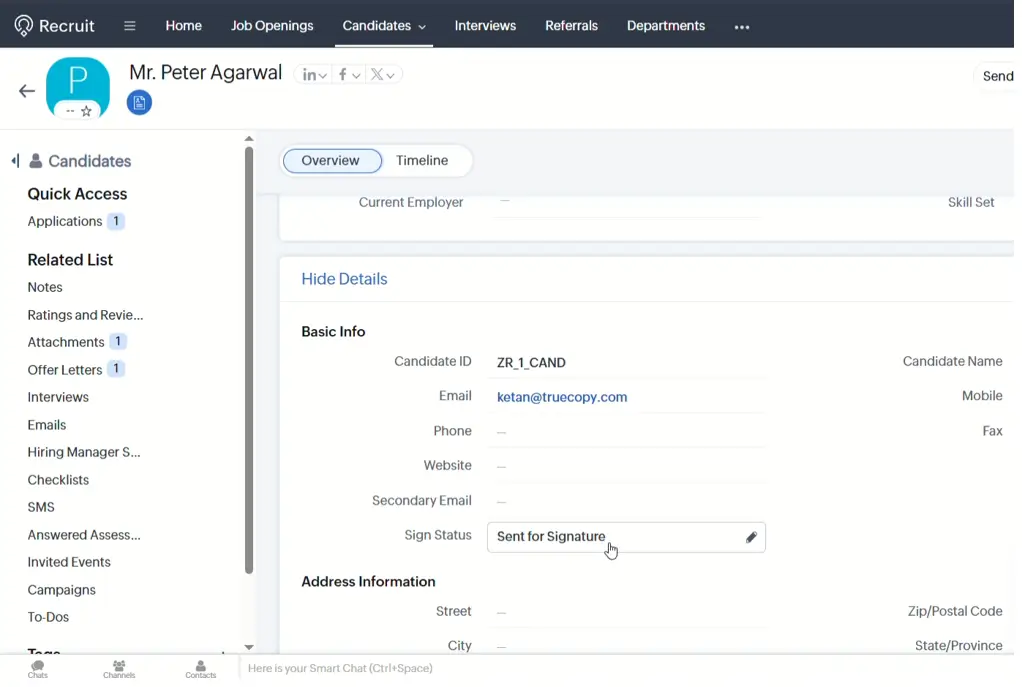
1. Once the document is sent, the signing status will be updated to Sent for Signing in the candidate details.
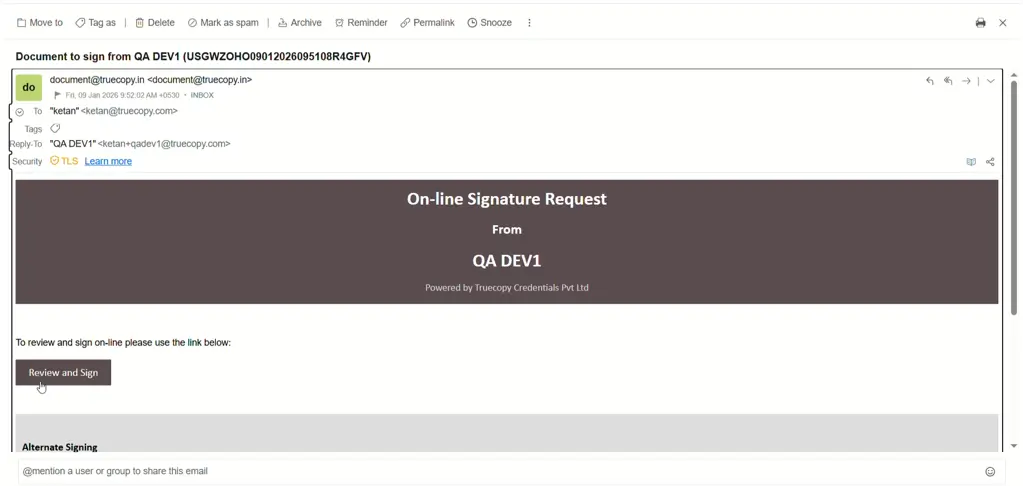
2. All selected signers will receive an email notification with a secure signing link.
3. Signers can click Review and Sign from the email to open and sign the document.
4. After all signers have successfully completed the signing process:
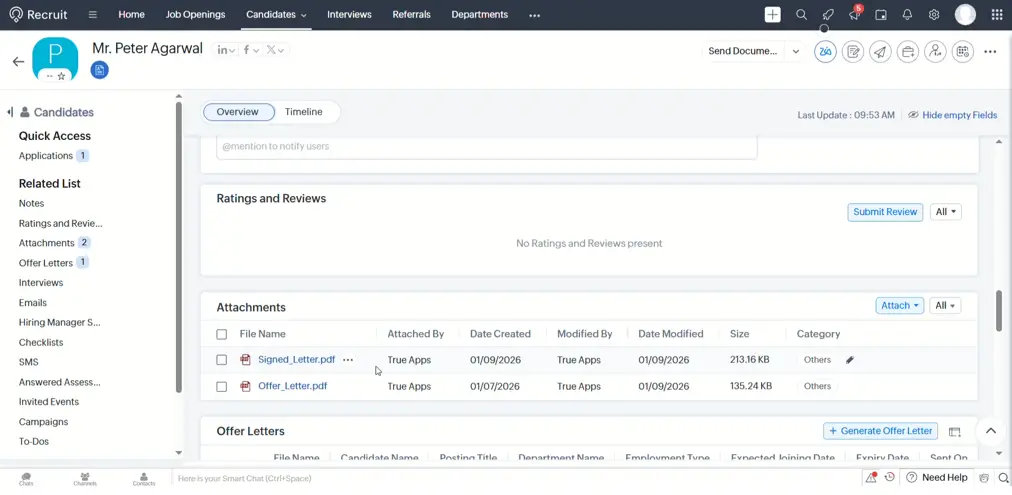
- The fully signed document is automatically saved in the candidate’s Attachments section.
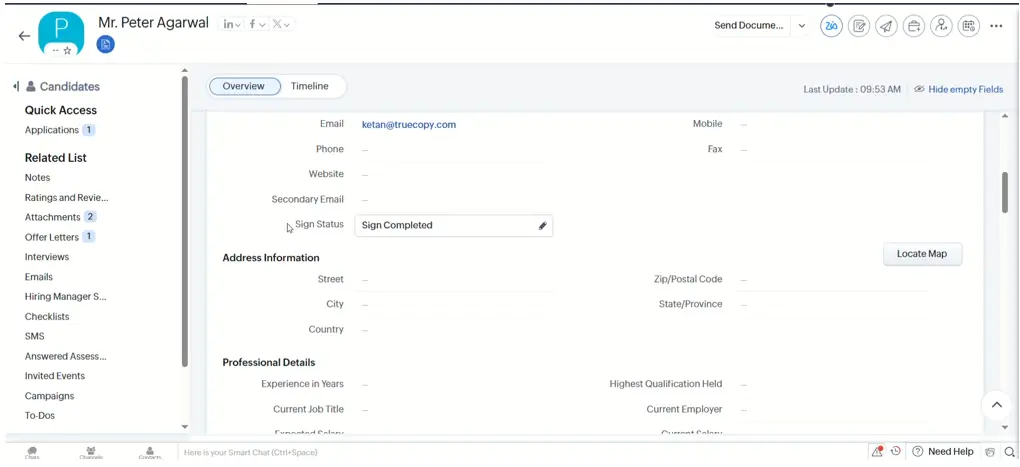
- The signing status is updated to Sign Completed.
- All signers receive the signed document via email.
5. Benefits of TRUESigner ONE for Zoho Recruit
• Seamless digital signing within Zoho Recruit
• Supports multiple signing methods (eSign, DCS, Aadhaar)
• No manual document handling
• Real-time signing status updates
• Secure storage of signed documents
• Faster and more efficient hiring workflows
6. Support
For credentials, onboarding, or technical support related to TRUESigner ONE, please contact:
• Email: apps@truecopy.com
• Sales: sales@truecopy.com